
How to Set Up a Fitness App on Apple Watch
Getting your fitness app running on Apple Watch takes about ten minutes if you know the exact sequence — but the setup decisions you make before you tap a single button will determine how much of your clients' health data you actually own.
Why Apple Watch Setup Is a Decision, Not Just a Download
Most coaches treat this as a tech task. It's actually a product question: which fitness app are you setting up, and does that app give you real access to the data it collects?
The difference between setting up a third-party app (Trainerize, Everfit, TrueCoach) and setting up your own branded app on Apple Watch is not cosmetic — it's structural. Same install flow on the client's end. Completely different reality on yours.
Third-party platforms sync Watch data back to their servers, not yours. You see a dashboard. You don't see the raw numbers. You can't query last week's HRV trends across your roster. You can't trigger an automated check-in when a client's resting heart rate spikes for three days in a row. The platform decides what you see and when.
When you own your codebase, Watch data flows into your database — heart rate, active calories, workout duration, HRV — and you can build logic around it. Auto-adjust tomorrow's programming. Flag recovery issues before the client even messages you. Trigger the kind of "hey, your numbers look off, let's drop volume this week" check-in that turns a $99/month app into a $299/month coaching product.
The steps below are the same regardless. The destination is not.
"Most coaches don't realize that when a client grants HealthKit access to a Trainerize or Everfit app, that biometric data is feeding someone else's database — not yours. The moment you own your delivery layer, you own the feedback loop that makes your programming smarter over time."

The Exact Steps to Set Up a Fitness App on Apple Watch
Here's the literal how-to. Paired iPhone required, App Store install, Watch app enable. No assumptions about prior experience.
Step 1: Pair Your iPhone and Apple Watch
The Watch must be paired to the same iPhone the app is installed on. This is a hard requirement from Apple, not a preference.
Quick checklist:
- Bluetooth is on
- Both devices are on the same Apple ID
- Watch is running watchOS 7 or later for most modern fitness apps
Step 2: Install the App on iPhone First
Every Watch app lives inside its parent iPhone app. You cannot install directly to the Watch from the App Store, even though the Watch has its own App Store icon.
Open the App Store on iPhone, search the app name, download it. Done.
Step 3: Enable the Watch App
Open the Watch app on iPhone — the one with the Watch face icon, pre-installed on every iPhone.
Scroll to "Available Apps." Your fitness app should appear within 30–60 seconds of the iPhone install. Tap "Install" next to it. The app pushes wirelessly to the Watch.
Step 4: Grant Health and Motion Permissions
On first launch (on the Watch or iPhone), the app will request access to HealthKit — Apple's system for storing health data locally on device. HealthKit is the permission layer that lets an app read heart rate, steps, calories, and workout records. Denying it means the app tracks nothing useful.
Tell clients to grant "All" permissions unless they have a specific reason not to. They can always adjust in iPhone Settings → Privacy & Security → Health.
Step 5: Confirm the App Appears on the Watch Face
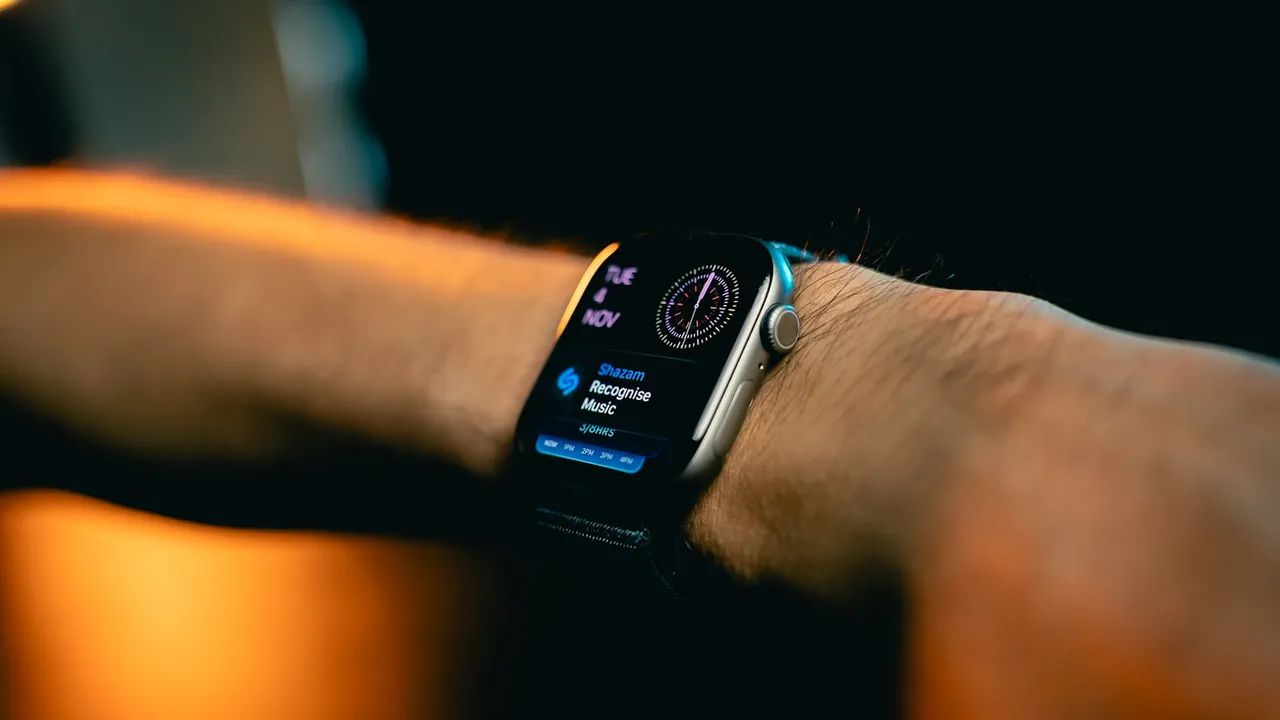
Press the Digital Crown on the Watch to open the app grid. Find the app icon. If it's not visible, open the Watch app on iPhone → My Watch → scroll to the app → toggle "Show App on Apple Watch" on.
That's it. Five steps. Ten minutes if the client is paying attention.
HealthKit and Workout Permissions: What Coaches Actually Need to Know
You don't need to understand the code. You need to understand what you're agreeing to when a client grants permissions, and what you lose if they don't.
HealthKit stores data on the client's device first. The app reads it from there. This is why Apple Watch fitness tracking is more privacy-friendly than many wearables — the data isn't auto-uploaded to a vendor cloud the moment it's recorded.
The permissions that matter most for coaching:
- Heart Rate — beat-by-beat data during workouts
- Active Energy Burned — calories tied to deliberate movement
- Workout — start/end timestamps and workout type
- Resting Heart Rate — a slow-moving recovery indicator
- HRV (heart rate variability) — a single number that reflects how recovered someone is, useful for programming decisions
If you're on a white-label platform, this data lives in their system. If you're building your own app (see the full breakdown in the coach's complete guide), it lives in yours.
Practical move: build a one-pager for clients explaining what each permission does and why you need it. Screenshots, plain-English captions. Coaches who do this see noticeably lower drop-off at the permission screen — which is the silent killer of fitness app retention.
Setting Up Your Own Branded Fitness App on Apple Watch (vs. a Third-Party App)
If you've built — or are building — your own app, the setup path for clients is identical, but the backend story is completely different.
Your branded app still installs via the App Store, after you've submitted it through Apple's developer program (a one-time $99/year enrollment). The client-facing setup steps are exactly the same as the section above. Nothing changes for them.
What changes: workout data, heart rate streams, and HRV readings route to your database. Not Trainerize's. Not Everfit's. Yours.
This is the unlock that lets platforms like Centr (Chris Hemsworth's app, sold for $200M) and Sweat (Kayla Itsines, sold for $400M) build adaptive programming — the Watch isn't just a display, it's a data source that improves your product over time. None of those exits happen if the company is renting infrastructure from a white-label vendor that takes 30% per sale and locks the data behind their dashboard.
If you're at the stage of scoping what your own app needs to do on Watch, FitDev's starter codebase includes HealthKit integration as a pre-built module — the permission requests, the data reads, the sync logic are already written. The FitDev waitlist is open if that's where you're heading.
Common Setup Problems and How to Fix Them
These three issues account for roughly 90% of "it's not working" messages from clients.
The Watch App Isn't Appearing in the Available Apps List
Force-quit the Watch app on iPhone (swipe up from the bottom, swipe up on the Watch app card), reopen it, wait 60 seconds. If still missing, delete and reinstall the iPhone app.
Permissions Were Denied and Now the App Tracks Nothing
iPhone → Settings → Privacy & Security → Health → [App Name] → toggle all relevant permissions on. No need to reinstall. This fixes it instantly in 99% of cases.
The App Installed but Won't Open on the Watch
Usually a watchOS version mismatch. Check the app's minimum watchOS requirement in the App Store listing. If the client's Watch is too old, that's a hardware conversation, not a settings conversation — and one worth having early before you spend an hour debugging.
Heart Rate Isn't Logging During Workouts
Confirm the client started the workout inside the fitness app on the Watch, not from the native Workout app. Data only flows to your app if the session is initiated through it. This is the single most common silent failure — the client thinks they tracked the session, you see no data, neither of you know why.
FAQ
How do I set up the fitness app on Apple Watch for my clients remotely?
The setup is entirely client-side — Apple doesn't allow remote installs for privacy reasons — but you can build a 5-step visual guide. Screenshot each step once on your own device, drop it into a PDF or Notion page, link it in your onboarding sequence.
Specifics to include: which Apple ID to use, exactly where to find the Watch app on iPhone, and a screenshot of the HealthKit permissions screen with each toggle labeled. This single asset eliminates most onboarding support requests.
Does every fitness app automatically have an Apple Watch version?
No. A Watch app is a separate build target — meaning it has to be explicitly designed and submitted by the developer. It doesn't come free with an iPhone app.
When evaluating white-label platforms, check whether their Watch app is included in your plan tier — some gate it to higher pricing. When building your own, this is a scoping decision: a Watch app adds development time but dramatically increases the daily touchpoints clients have with your brand. A wrist tap during a lift is worth ten push notifications.
How do I set up fitness app on Apple Watch if my client doesn't have an iPhone?
Apple Watch requires a paired iPhone. Full stop. There is no Android pairing path.
If a meaningful portion of your client base is on Android, the equivalent path is Wear OS (Google's Watch platform) — a separate technical decision worth flagging early in your app build. For mixed audiences, Garmin and Fitbit have their own SDK ecosystems. Most coaches building their first app pick one platform — iOS first, given its dominance in fitness demographics and willingness-to-pay — and expand later.
What's the difference between setting up a fitness app on Apple Watch versus the iPhone Fitness app?
Clients — and some coaches — confuse the native Apple Fitness app with third-party coaching apps. Worth a clean distinction.
Apple's built-in Fitness app (the red flame icon) tracks activity automatically and is always on. It's Apple's product, not yours. A third-party fitness app (yours, Trainerize's, Everfit's) sits alongside it and pulls data from HealthKit — it doesn't replace the native app.
The coaching layer — your programs, your check-ins, your progression logic — lives in your app. Apple Fitness just supplies the raw biometric data that feeds it. The Watch is the sensor. Your app is the product. Knowing which is which is the difference between building a real coaching business and being a feature inside someone else's.